
From the notebook
AADSTS53003: Access Has Been Blocked by Conditional Access Policies — How to Read It, Trace It, and Fix It
AADSTS53003 is the error users see when a Conditional Access policy stopped them from signing in. The error itself is deliberately vague — the actual reason is buried in the sign-in log entry for that attempt. Here's how to find the log entry, decode which policy blocked the sign-in and why, and work through the five most common causes.

A user calls the helpdesk. They're trying to sign in to Outlook, or Teams, or the Azure portal, and Microsoft is showing them this:
AADSTS53003: Access has been blocked by Conditional Access policies. The access policy does not allow token issuance.
They've tried refreshing. They've tried a different browser. They've restarted their laptop. The message doesn't change. What now?
The error itself is intentionally uninformative. Microsoft doesn't tell the user which Conditional Access policy blocked them or why — that would leak information about your security posture to potential attackers. The good news is that the full diagnostic information is available to you as the admin, sitting in the Entra sign-in logs, waiting for you to look at the specific attempt. This post walks through how to find that entry, how to read it, the five reasons this error usually appears, and the fixes for each.
What AADSTS53003 actually means
Every sign-in to Entra ID passes through the Conditional Access engine before the token is issued. The engine evaluates every policy that could apply — based on the user, the app they're accessing, the device they're on, the location they're signing in from, and the risk signals available at that moment — and produces one of three outcomes for each policy:
- Not applied — the policy's assignment conditions didn't match this sign-in, so it wasn't considered.
- Success — the policy was evaluated, its grant controls (MFA, compliant device, and so on) were satisfied, and it approved the token issuance.
- Failure — the policy was evaluated, but its grant controls could not be satisfied or its block-access control matched, so it blocked the token issuance.
AADSTS53003 is the user-facing message for outcome #3. At least one policy that applied to this sign-in either explicitly blocked it, or required something the user couldn't provide (a specific authentication strength, a compliant device, a specific location) — and the sign-in was denied as a result.
The important thing to understand: the error is deliberate, not a bug. Conditional Access is working exactly as configured. The question isn't "why is Entra failing" but "why did the policy configuration produce a block for this user in this situation."
Vocabulary you need before diagnosing this
If you're not fluent in these terms, the sign-in log details will look confusing. Skim them once before opening the portal.
Conditional Access policy. A rule that says "when X sign-in happens, require Y (or block)." X is the assignment — users, cloud apps, device state, location, sign-in risk. Y is the grant control — require MFA, require compliant device, require phishing-resistant authentication, or block access entirely.
Applied vs Not applied. A policy is applied to a specific sign-in when the assignment conditions match. A policy that requires MFA on all users signing in from outside the corporate network is applied when a user actually signs in from home, not applied when they sign in from the office.
Grant control. What the policy demands of a sign-in that it applies to. "Require multi-factor authentication," "require compliant device," "require app protection policy," or "block access."
Authentication Strength. A newer grant control that specifies which authentication methods satisfy MFA. A policy requiring the "Phishing-resistant MFA" authentication strength will fail even if the user did provide MFA, because Microsoft Authenticator push doesn't qualify as phishing-resistant.
Sign-in log. The audit trail Entra ID keeps for every authentication attempt. Includes the outcome, correlation ID, user, app, IP, device, applied policies, and — critically for troubleshooting — the specific reason each applied policy failed.
Correlation ID. A GUID that ties together a specific sign-in attempt across all Microsoft telemetry. When a user reports the AADSTS53003 error, ask them to screenshot the full error page — the correlation ID is on it and lets you find the exact entry in the sign-in log.
How to find the sign-in log entry for this specific attempt
The most common mistake troubleshooting Conditional Access is guessing which policy fired instead of reading the log. Don't guess. Find the entry.
Get the correlation ID from the user
Ask the user to expand the "More details" link on the error page and screenshot it. The correlation ID is a GUID that looks like a1b2c3d4-e5f6-7890-abcd-ef1234567890. That GUID uniquely identifies their failed sign-in attempt across all Microsoft telemetry.
If they can't get the correlation ID (or don't want to try again to reproduce it), fall back to filtering by their UPN and the time of the attempt in the next step. The correlation ID is just a shortcut.
Open the sign-in log
Entra admin centre → Users → find the affected user → Sign-in logs. Or the shortcut path: Entra ID → Monitoring → Sign-in logs and filter by UPN.
Set the time filter to the last hour. Find the failed entry — the status column will show "Failure." Click into it.
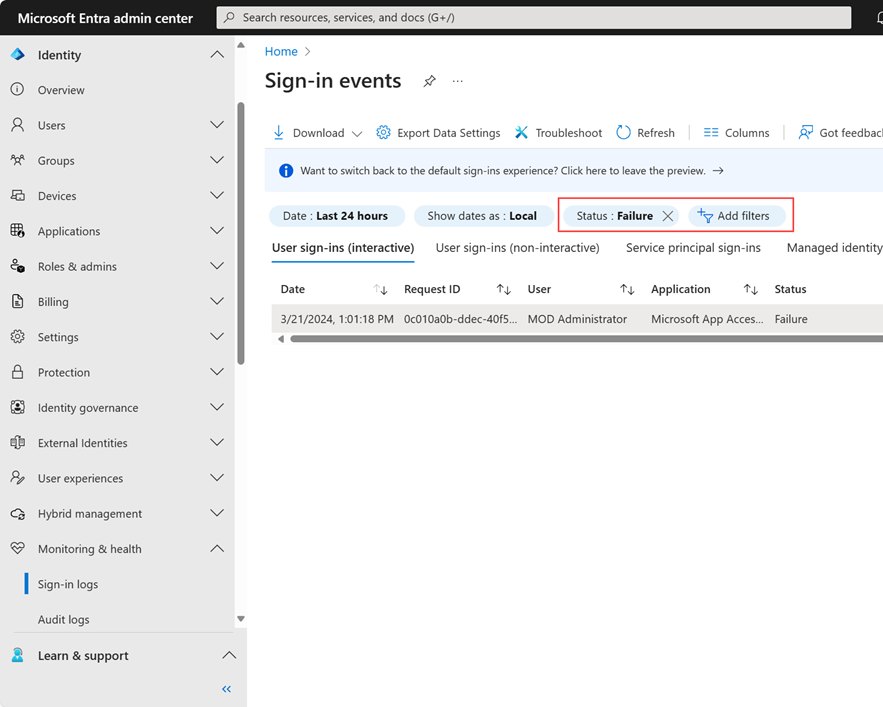
Microsoft documentation screenshot — Use filtering to find the relevant event; the filter alone does not identify the policy that blocked access. Source: Microsoft Learn. The interface may differ in your tenant. Open full-size screenshot.
Read the "Conditional Access" tab
The details pane for a failed sign-in has a Conditional Access tab. This is where the actual diagnosis lives. You'll see every policy that applied to the sign-in, and for each one:
- The policy's name
- Its outcome (Success, Failure, Not applied)
- If Failure, the specific grant control that couldn't be satisfied
The policy responsible for the block is the one showing "Failure." The others either succeeded or didn't apply. If more than one shows Failure, they're all blocking — you need to satisfy all of them (or find why they all apply and shouldn't).
Read the "Basic info" and "Authentication details" tabs too
Basic info tells you what app the user was trying to reach, what IP they came from, whether their device was joined or registered, and whether Entra flagged the sign-in as risky. Authentication details tells you which authentication methods the user did provide.
Together, these three tabs — Basic, Authentication, Conditional Access — tell you the whole story.
The five reasons AADSTS53003 usually shows up
In rough order of frequency, from what I see across tenants.
1. Policy requires MFA and the user hasn't registered any MFA method
The most common cause on freshly onboarded users. A Conditional Access policy requires MFA, the user has never set up an authentication method (Microsoft Authenticator, security key, TAP), and the policy has nothing to fall back on.
Sign-in log signal: "Require multi-factor authentication" listed as the failing grant control, and the Authentication details tab shows the user provided only a password.
Fix: Issue the user a Temporary Access Pass. Have them use the TAP to sign in and register at least one strong authentication method at https://mysignins.microsoft.com/security-info. Once registered, the block clears on their next sign-in.
2. Policy requires a compliant device, and the device isn't compliant
Second most common on organisations that deployed Intune-based device compliance. The Conditional Access policy requires "Compliant device" (or "Hybrid Azure AD joined") and the user is signing in from a device that Intune has not marked as compliant.
Sign-in log signal: "Require compliant device" as the failing grant control. Basic info shows the device is either not managed at all, or is managed but showing compliance state "Not compliant."
Fix: Determine why the device isn't compliant. Common sub-causes: encryption not detected (BitLocker on Windows, FileVault on macOS), OS version behind policy minimum, missing required app, device just registered and hasn't reported compliance status yet. Intune → Devices → find the device → Compliance section shows exactly which compliance policy setting is failing.
Common trap: if the user is on a brand-new machine, Intune compliance can take 15–60 minutes after enrollment to sync. Waiting 30 minutes and retrying often "fixes" this without any real fix.
3. Policy requires phishing-resistant MFA and the user provided push MFA
Increasingly common as organisations deploy Authentication Strengths to enforce passkey / FIDO2 for privileged roles.
Sign-in log signal: Failing grant control lists an Authentication Strength (usually "Phishing-resistant MFA" or a custom strength). Authentication details shows the user provided a method (usually Microsoft Authenticator push notification) that doesn't satisfy that strength.
Fix: The user needs to sign in with a method that meets the required strength — a FIDO2 security key, Windows Hello for Business, or a platform passkey. If they haven't registered one, issue a TAP and have them register a security key. If they have registered one but chose push, they need to select the security key option on the sign-in screen instead.
Related read: choosing a FIDO2 security key for a Microsoft Entra passkey rollout.
4. Sign-in came from a blocked location
The user is signing in from a country or IP range explicitly named in a "block by location" Conditional Access policy.
Sign-in log signal: "Block access" listed as the grant control on a policy whose assignment includes locations. Basic info shows the IP address and the location Microsoft resolved it to (often a country name, sometimes a specific named location if you've defined one).
Fix: Confirm whether the user is supposed to be signing in from that location. Legitimate cases: they're on holiday, they're using a VPN that egresses in another country, they're at a temporary work site. Illegitimate cases: their credentials are being tried by an attacker.
If legitimate, either whitelist the specific location (in the CA policy's location settings) or grant a Temporary Access Pass so they can sign in without hitting the block. If illegitimate, this is the policy doing its job — reset the user's password and revoke sessions.
5. Break-glass account triggered a policy it wasn't excluded from
An emergency-access / break-glass account was used and blocked because a policy applied to it. This is dangerous because break-glass accounts exist specifically to work when other authentication paths are broken — if a CA policy blocks them, you may have no way in.
Sign-in log signal: Failing policy is one that shouldn't apply to break-glass accounts (usually the "require compliant device" or "require phishing-resistant MFA" policies). The account name matches your defined break-glass accounts.
Fix: Immediate — use the second break-glass account (you have two, right?) to sign in and modify the failing policy to exclude both break-glass accounts. Never leave a tenant in a state where a CA policy could block every emergency-access path simultaneously.
Related read: Microsoft Entra ID backup and recovery strategy.
Working through a real diagnosis
Suppose a user calls with AADSTS53003. Here's the concrete sequence:
- Get the correlation ID or ask for the exact time of the attempt and their UPN.
- Open Entra sign-in logs. Filter to their UPN, sort by time descending. Find the failed entry from the matching timeframe.
- Click Conditional Access tab. Note every policy showing Failure.
- Click Authentication details tab. Note what auth methods they did provide.
- Cross-reference. The failing grant control tells you what was demanded; the auth details tell you what was offered. The gap is the problem.
- Determine the appropriate fix from the five patterns above.
- Communicate the fix to the user. If it involves a TAP, issue the TAP. If it involves waiting for device compliance, tell them how long.
Most AADSTS53003 diagnoses take 3–5 minutes if you go through the sign-in log properly and 40 minutes if you try to guess.
A KQL query for tenant-wide analysis
If you're seeing AADSTS53003 across many users and want to understand the pattern, this query returns the failing policies and their frequencies:
SigninLogs
| where TimeGenerated > ago(7d)
| where ResultType == 53003
| mv-expand ConditionalAccessPolicies
| where ConditionalAccessPolicies.result == "failure"
| extend PolicyName = tostring(ConditionalAccessPolicies.displayName)
| extend GrantControl = tostring(ConditionalAccessPolicies.grantControlsIncluded)
| summarize BlockedSignIns = count(), UsersAffected = dcount(UserPrincipalName) by PolicyName, GrantControl
| order by BlockedSignIns desc
The output shows which policies are producing the most blocks and how many users are affected. A policy blocking a lot of users is often a misconfigured policy — worth investigating before you disable it.
For a specific user's history:
SigninLogs
| where UserPrincipalName == "user@contoso.com"
| where TimeGenerated > ago(24h)
| where ResultType == 53003
| project TimeGenerated, AppDisplayName, IPAddress, DeviceDetail, ConditionalAccessPolicies
What goes wrong when fixing this
"I excluded the user from the failing policy and it still blocks them." Another policy is also failing. Re-check the sign-in log — there may be multiple policies showing Failure. Exclude them all, or (better) understand why they all applied and fix the underlying condition.
"I removed the user from the policy scope but the block persists for an hour." Conditional Access policy caches in the Entra service for up to about an hour after changes. Also, existing sessions may still see the old policy — sign the user out of everything (Revoke-MgUserSignInSession -UserId user@contoso.com) to force a fresh evaluation.
"The policy shows Success but the sign-in is still blocked." Different error — not AADSTS53003. Check the actual error code shown to the user; you may be looking at a token issuance failure downstream of Conditional Access.
"The 'Blocked by Conditional Access' error is showing but no policy shows Failure in the log." Look for policies in "Report-only" mode — they don't block, but the sign-in log will show that they would have blocked. If nothing shows in the log at all, verify you're looking at the right sign-in attempt using the correlation ID.
FAQ
Can I show the user which policy blocked them? No, deliberately. Exposing policy names to end users is an information leak. What you can do is train the helpdesk to gather the correlation ID and use it to look up the specific block. Users don't need to know the policy name — they need to know what to do next, which is what the helpdesk relays.
What's the difference between AADSTS53003 and AADSTS50158? AADSTS53003 is the general "Conditional Access blocked you" message. AADSTS50158 is a more specific variant that means the sign-in was blocked because the "external security challenge" (typically the required Authentication Strength) wasn't satisfied. Both are Conditional Access blocks; 50158 tells you specifically that the strength requirement was the issue.
Is there a way to test a policy against a user before rolling it out? Yes — Conditional Access has a "What If" tool at Entra ID → Protection → Conditional Access → What If. Enter the user, app, and conditions; it tells you which policies would apply and which grant controls would fire. Use this before changing production policies.
How long does a CA policy change take to propagate? Typically 5–15 minutes, occasionally up to an hour. If a change isn't visible after 15 minutes, revoke the user's sign-in sessions and try again.
Does AADSTS53003 count against sign-in risk in Identity Protection? No — it's an authorization failure at the policy level, not an authentication anomaly. Identity Protection tracks risk based on sign-in patterns (impossible travel, unfamiliar location, leaked credentials) rather than policy blocks.
Can a Global Administrator bypass this? No. Conditional Access policies apply to Global Admins the same as any other user. If a policy is blocking a Global Admin, you either use a break-glass account (which should be excluded from the policy) or you sign in from a source that satisfies the policy. This is why break-glass accounts exist.
References
- Microsoft: AADSTS error codes reference
- Microsoft: Troubleshoot Conditional Access using the What If tool
- Microsoft: Sign-in logs in Microsoft Entra ID
- Related: Conditional Access sign-in log troubleshooting on this site
About the author
MU.AMicrosoft 365 / Entra Engineer
MU.A is the editorial byline for Sentinel Identity, covering Microsoft Entra, Microsoft 365, and identity administration. Send corrections or questions through the contact page.
Feedback
Was this article helpful?
Anonymous — no account or comment required.
Related reading
Windows Hello Registration Blocked by Conditional Access
Fix Windows Hello registration blocked by Conditional Access: trace the policy, break bootstrap loops, validate TAP, and restore provisioning safely.
AADSTS50076 MFA Required: Microsoft Entra Fix Guide
Fix AADSTS50076 MFA required errors by tracing Conditional Access, per-user MFA, session changes, app interaction, registered methods, and sign-in evidence.
Microsoft Entra Agent User Conditional Access Guide
Configure Microsoft Entra agent user Conditional Access safely: choose the right scope, validate endpoint signals, monitor logs, and roll out cleanly.