
From the notebook
Reading the Conditional Access Sign-in Log: A Working Field Guide
Someone can't get into Outlook. Conditional Access blocked them. Most of us reach for the policy editor first, and that's the wrong tab. Here's how to read the sign-in log the way the engine actually wrote it, with KQL, AADSTS codes, and the short decision tree that closes most CA tickets in five minutes.

Someone in finance can't open Outlook. The ticket lands at 9:14, you're already three messages deep on Teams, and the instinct (everyone has it) is to jump straight into the Conditional Access policy editor and start poking at targeting. That's almost always the wrong tab to open first.
The sign-in log is where the answer lives. It records exactly what the Entra runtime did for one specific request, against one specific user, with one specific device on one specific network, at one specific moment. The policy editor only tells you what the rules say. The sign-in log tells you what actually happened. When a real incident is in flight, the gap between those two things is the entire mystery.
The pattern that closes most Conditional Access tickets fast looks the same every time. Pull up the failed sign-in, copy three things off it, walk a short decision tree, fix the problem in five minutes. The point of this piece is to make that pattern boring and repeatable. We'll cover what a sign-in record actually contains, how to read the Conditional Access verdict column without misreading it, the failure patterns that account for most of what you'll see, the KQL queries worth keeping in a workbook, and the few situations that genuinely need a Microsoft Support ticket.
If you only have time for a single takeaway, it's this: open the sign-in log first, the Authentication Details tab second, and the policy editor only after you've read both. The first ten or twenty times I worked CA incidents I did it in reverse, and every single one of those tickets took longer than it should have.
Finding the sign-in that matters
Step 1 — Expand the sign-in error details
On the error page, select More details. Note the event time and correlation ID so you can match the attempt in the sign-in logs.
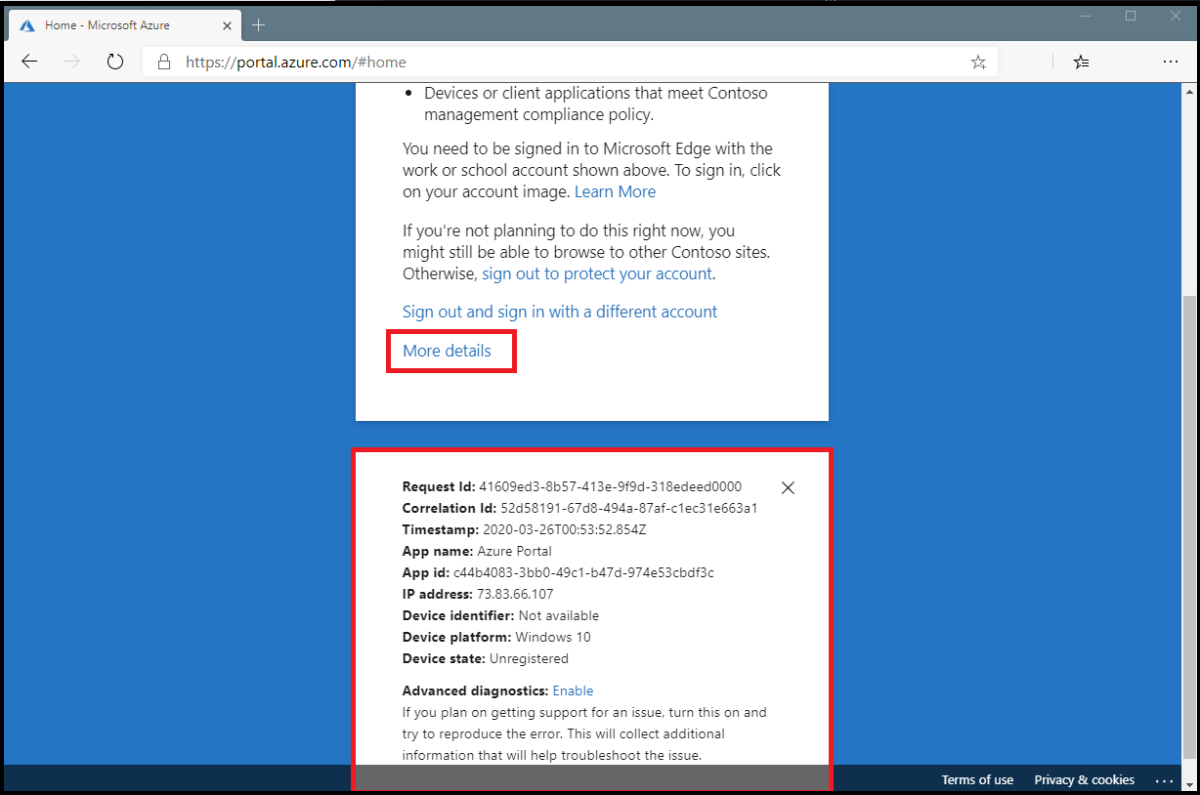
Actual Microsoft documentation screenshot, not a capture from this site's tenant. Source · Open full size.
Step 2 — Find the matching event
The Entra admin center keeps sign-ins under Monitoring → Sign-in logs, split across four tabs (Interactive user, Non-interactive user, Service principal, Managed identity). For day-to-day CA troubleshooting you'll spend almost all your time on Interactive and Non-interactive. Native rich clients and browser sessions show up on Interactive. Refresh-token redemption, background syncs, and Outlook reconnecting in the morning all show up on Non-interactive, which is why a user can report "I never signed in" while their account is in fact making token requests every few minutes.
When the user gives you a rough time, search forward and backward by about ten minutes. The right record is the one matching app, device, IP, and approximate timestamp. Once you've found it, three values matter more than anything else: the Correlation ID, the AADSTS code, and the per-policy verdicts on the Conditional Access tab. Copy those into the ticket immediately, before anything else, because half the time you'll spend rereading them and you don't want to lose your place chasing them down again.
The rest of the fields on a record are useful in context: the resource (which is the resource, not the app the user thought they clicked on — Outlook clicks make requests to "Office 365 Exchange Online"); the Client app value (which is how you spot legacy auth quietly happening at the perimeter); the device join state and compliance state (which is how you separate "user error" from "device state out of sync with what Entra thinks"); and the IP address and named location, which matter the moment a geo-block or VPN is in play.
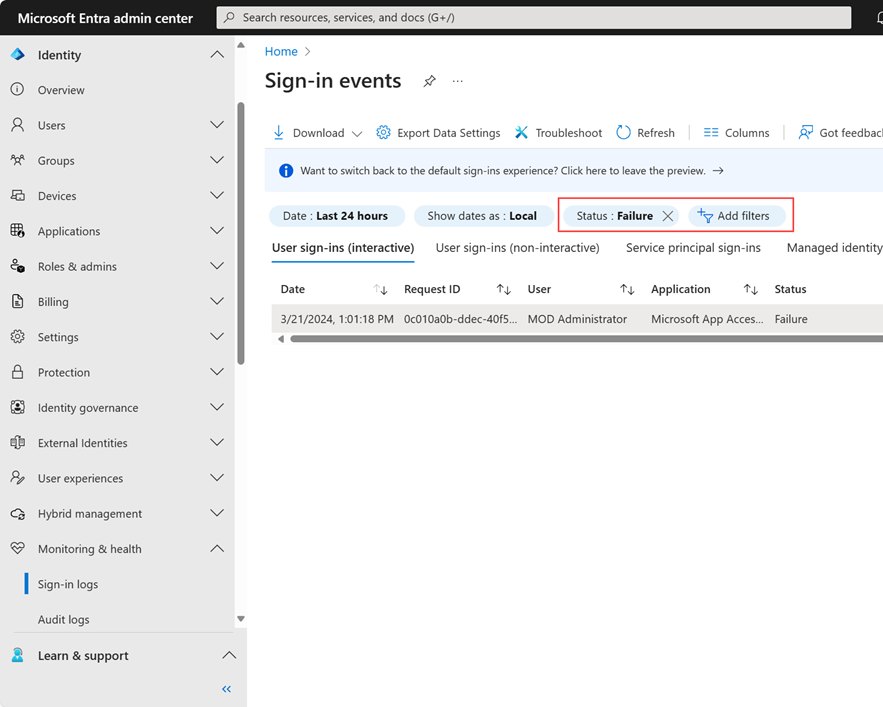
Microsoft documentation screenshot — Filter the sign-in list, then open the event that matches the time, user, and resource being investigated. Source: Microsoft Learn. The interface may differ in your tenant. Open full-size screenshot.
Step 3 — Inspect the Conditional Access result
The Conditional Access tab on a sign-in record lists every policy that was in scope for that request, with a verdict next to each. The verdict values worth understanding:
- Success means every required control was satisfied.
- Failure means at least one required control couldn't be satisfied. This is the row the user is feeling.
- Not applied means the policy's targets matched but its conditions didn't fire — a user-risk policy that didn't trigger because Identity Protection didn't classify the session as risky, for example. It's not a bug, it's "this policy looked at this request and decided not to do anything."
- Report-only variants of the above mean the same evaluation happened but the policy wasn't enforced. Read these the same way you'd read enforced ones; they're previewing what will happen when you flip the switch.
- User action required means the policy needed some interactive step the client never completed (registering a method, accepting terms of use, etc).
A common misreading I want to flag explicitly: when a policy you expect to be in scope doesn't appear in the list at all, the policy targeting did not match this request. Which is itself a useful diagnosis, just not the one most people are looking for. Group memberships you forgot about — service-account exclusions, break-glass groups, project exception groups — are by far the most common reason. Right behind those: a cloud-app filter that excludes the resource the runtime actually requested, a client-app filter that excludes "Browser" when the user is in a native client (or vice versa), and named-location conditions that match a trusted location the policy explicitly excludes.
The other misreading I see weekly: people read the first row of the Conditional Access tab and stop. Each policy is evaluated independently, and the overall request verdict is the most restrictive outcome across all of them. If you stop at "first row says Success," you can miss the third row that says Failure for an entirely different policy. Read every row.
The failure patterns you'll see, again and again
Spend enough time in CA incident reviews and the same shapes recur. I'll cover the five that account for most of what comes through.
Device compliance, when the device isn't compliant. The AADSTS code is usually AADSTS53000 ("device is required to be managed"), occasionally AADSTS530003 for missing device state altogether. The policy that required compliance shows Failure. Resolution always starts in Intune: is the device enrolled, is it reporting Compliant, and does the device record Entra sees match the one making the request? The frequent miss is a user's personal laptop that they consider "their work laptop" because they sign in with their work account, but which isn't enrolled in Intune at all. The other miss: a device that's Entra-joined but never managed, which counts as a known device but not a compliant one.
Hybrid join required, device not hybrid joined. This one shows up most after a tenant migrates from federated to managed authentication and a leftover hybrid-join policy keeps enforcing the old expectation. Same AADSTS family. The device shows as Microsoft Entra registered when the policy wants Hybrid joined. Either force a re-registration with dsregcmd /leave and rejoin, or drop the hybrid requirement from the policy if the tenant has moved past that model.
MFA required, MFA not satisfied. AADSTS50158 or AADSTS500121 are what I see most often here. The Conditional Access tab points at the policy that asked for the control. Now jump to the Authentication Details tab (which is the most overlooked tab in the whole interface, more on that below). It will tell you every method the runtime requested, which the user actually presented, and the timestamps. The most common scenario I run into in 2026: the policy required a phishing-resistant strength (passkey, FIDO2, WHfB) and the user kept trying SMS or push, neither of which satisfies the strength. The user has no idea why, because the prompt didn't say "your method isn't strong enough" — it just looped.
Location blocked. AADSTS53003 plus a location-blocking policy reading Failure. Look at the IP and the geo derived from it. This is genuine travel and corporate-VPN-egress-in-another-region more often than it is actual compromise, but it's worth checking the user's known travel before you assume nothing's wrong. The other thing worth a moment: if you publish your egress NAT IPs as named locations and they change, you can break this without realising for a few hours.
Risk-based block. AADSTS50053 ("blocked due to risk") or AADSTS50079 ("proof up required"). The Risk state column on the sign-in shows what Identity Protection computed. These are sometimes legitimate risks and sometimes Identity Protection misclassifications, and there's no diagnostic short of looking at the actual signal that triggered it. Microsoft's remediation guidance for unblocking risky users is the place to start if it's a misclassification.
The Authentication Details tab is where I spend most of my time
I mentioned this above and want to come back to it because it's underused. Every sign-in record has an Authentication Details tab next to the Conditional Access tab, and it answers two questions the CA tab cannot.
First: which method did the user actually present? Not which method they had registered, which method they used on this request. If your strength policy requires phishing-resistant and the user satisfied it with a passkey, you'll see "FIDO2 security key" or "Passkey (Microsoft Authenticator)" in the list. If they fell back to SMS instead, the strength check fails and this tab tells you why.
Second: when was the most recent satisfaction? Sign-in frequency policies care about freshness. If a policy requires reauthentication every four hours and the user's last strong-method timestamp is five hours ago, the runtime prompts again. That's correct behaviour, not a bug, and the question "why am I being asked to MFA again?" gets answered here.
I keep this tab open in a second browser tab alongside the Conditional Access tab during any active incident. They're complementary, and reading just one without the other is how you miss the answer that's right there.
KQL queries worth keeping in a workbook
The Entra portal sign-in log holds 30 days. For anything longer than that, ship sign-ins to Log Analytics via Diagnostic Settings and query the SigninLogs table with KQL. Here's the starter set I'd save into a workbook today.
The first one is the query you reach for whenever a user has multiple recent failures. Copy this, swap the UPN, and you'll see the whole pattern for the past week:
// CA failures for a specific user, last 7 days
SigninLogs
| where TimeGenerated > ago(7d)
| where UserPrincipalName == "user@contoso.com"
| where ConditionalAccessStatus == "failure"
| project TimeGenerated, AppDisplayName, ClientAppUsed, IPAddress,
          ConditionalAccessPolicies, Status, CorrelationId
| order by TimeGenerated desc
The second is the one I run weekly as a population check. Which CA policies are producing the most failures across the whole tenant? Anything that suddenly jumps to the top of the list is worth investigating, because it usually means a targeting change quietly broke something:
// Top failing CA policies, tenant-wide
SigninLogs
| where TimeGenerated > ago(7d)
| mv-expand policy = ConditionalAccessPolicies
| where tostring(policy.result) == "failure"
| summarize Failures = count() by PolicyName = tostring(policy.displayName)
| order by Failures desc
The third is legacy authentication detection. If a tenant has blocked legacy auth (which it should have, years ago), this query should return nothing. When it doesn't return nothing, you have a discovery problem on your hands:
// Legacy authentication sign-ins (anything not modern)
SigninLogs
| where TimeGenerated > ago(7d)
| where ClientAppUsed !in ("Browser", "Mobile Apps and Desktop clients")
| summarize Signins = count() by UserPrincipalName, ClientAppUsed
| order by Signins desc
And one more, narrower: compliant-device failures specifically. This is useful when a device-compliance rollout is in flight and you want to see which users are hitting it most:
// CA failures specifically on compliant-device controls
SigninLogs
| where TimeGenerated > ago(7d)
| mv-expand policy = ConditionalAccessPolicies
| where tostring(policy.result) == "failure"
| where tostring(policy.enforcedGrantControls) has "CompliantDevice"
| project TimeGenerated, UserPrincipalName, DeviceDetail, IPAddress, CorrelationId
Pin the second query to a workbook and look at it once a week. It catches quiet regressions you'd otherwise discover only when someone files a ticket.
Using What If to reproduce a failure
The What If tool is under Protection → Conditional Access → What If. You give it a user, a cloud app, a client type, a device, a location, and a risk level, and it shows you which policies would apply, what they'd enforce, and what the combined verdict would be. It's not running against the live evaluation pipeline, so it won't catch platform-side bugs, but it's much faster than asking the user to retry while you watch.
Two ways to use it that I find consistently useful. The first is direct comparison: run What If with the same parameters as the failed sign-in, then compare the list of in-scope policies between What If and the Conditional Access tab on the actual record. If they don't match, your reproduction is missing something the live request had — usually a risk classification you didn't simulate, a missing device-compliance signal, or a stale group membership. The second is strength-checking: What If tells you which Authentication Strength would be required. If it shows "Phishing-resistant MFA" and the user has nothing registered that satisfies it, you've found your root cause without needing to bother the user again.
When to bring Microsoft in
Most CA incidents are policy-shaped, and they're yours to fix. Three situations are different and worth a Support ticket.
The first is when the Conditional Access tab is empty for a sign-in that failed with AADSTS90019 or a generic "interrupt" status, and your repro confirms a policy should have applied. That's a hint that the evaluation pipeline didn't run as expected, which is a backend problem you can't diagnose from your side.
The second is when verdicts flap between Success and Failure on identical requests in the same minute. Intermittent results suggest signal-propagation issues in the backend, not configuration on yours.
The third is genuinely delayed risk classifications — hours rather than minutes — for users whose Identity Protection licensing and connectivity you've already validated. Anything longer than a handful of minutes is unusual.
When you do open the ticket, include the Correlation ID, the Request ID if available, the User object ID, the Tenant ID, the time window, and the exact policy display name that produced the unexpected verdict. Microsoft Support can't pull backend traces without those identifiers, and screenshots alone aren't enough.
The questions I get asked
A few of these come up often enough that they're worth addressing directly.
Why does a sign-in show Success on the Conditional Access tab but the user is still blocked from the app? The CA verdict is about token issuance. If the user is blocked at the app layer — an Exchange mailbox restriction, a SharePoint site permission, a Defender for Cloud Apps session policy — the sign-in is fine and the block is downstream. Check the application's own audit log next.
A policy is in report-only but the user is being blocked, how? Report-only never enforces. A different policy is doing the blocking. Re-read the Conditional Access tab and find the enforced row with the Failure verdict. Don't trust portal display ordering, just read every row.
Authentication Details says MFA was satisfied two hours ago, why am I being prompted again? Three possibilities. One: a strength policy needs something stronger than the satisfied method, and the existing satisfaction doesn't count. Two: a sign-in frequency policy demands more frequent reauth. Three: this is a different session context entirely — different client, different resource — and inherits no satisfaction from the other. All three are documented behaviour, not bugs.
Why is the Client IP in the sign-in log not the user's home IP? Anything between the user and Entra (VPN, corporate proxy, forward egress) is what Entra sees as the source. If your edge passes X-Forwarded-For you can cross-check, but the connection IP is what the runtime evaluates against.
The Conditional Access tab shows the same policy twice. Why? Most often because the policy has separate grant and session controls that get evaluated at different points in the request, or because a single token issuance includes multiple sub-requests (primary plus secondary token requests sharing a correlation ID). Read each verdict on its own.
Where to read further
- Conditional Access overview — Microsoft Learn
- Troubleshoot sign-in problems with Conditional Access — Microsoft Learn
- Sign-in logs in the Microsoft Entra admin center — Microsoft Learn
- SigninLogs schema reference — Microsoft Learn
- AADSTS error code reference — Microsoft Learn
- Conditional Access What If tool — Microsoft Learn
- Authentication strengths — Microsoft Learn
About the author
MU.AMicrosoft 365 / Entra Engineer
MU.A is the editorial byline for Sentinel Identity, covering Microsoft Entra, Microsoft 365, and identity administration. Send corrections or questions through the contact page.
Feedback
Was this article helpful?
Anonymous — no account or comment required.
Related reading
Windows Hello Registration Blocked by Conditional Access
Fix Windows Hello registration blocked by Conditional Access: trace the policy, break bootstrap loops, validate TAP, and restore provisioning safely.
AADSTS50076 MFA Required: Microsoft Entra Fix Guide
Fix AADSTS50076 MFA required errors by tracing Conditional Access, per-user MFA, session changes, app interaction, registered methods, and sign-in evidence.
Microsoft Entra Agent User Conditional Access Guide
Configure Microsoft Entra agent user Conditional Access safely: choose the right scope, validate endpoint signals, monitor logs, and roll out cleanly.